Nano Text Editor Cheat Sheet
A quick reference guide for essential GNU Nano text editor commands and shortcuts.
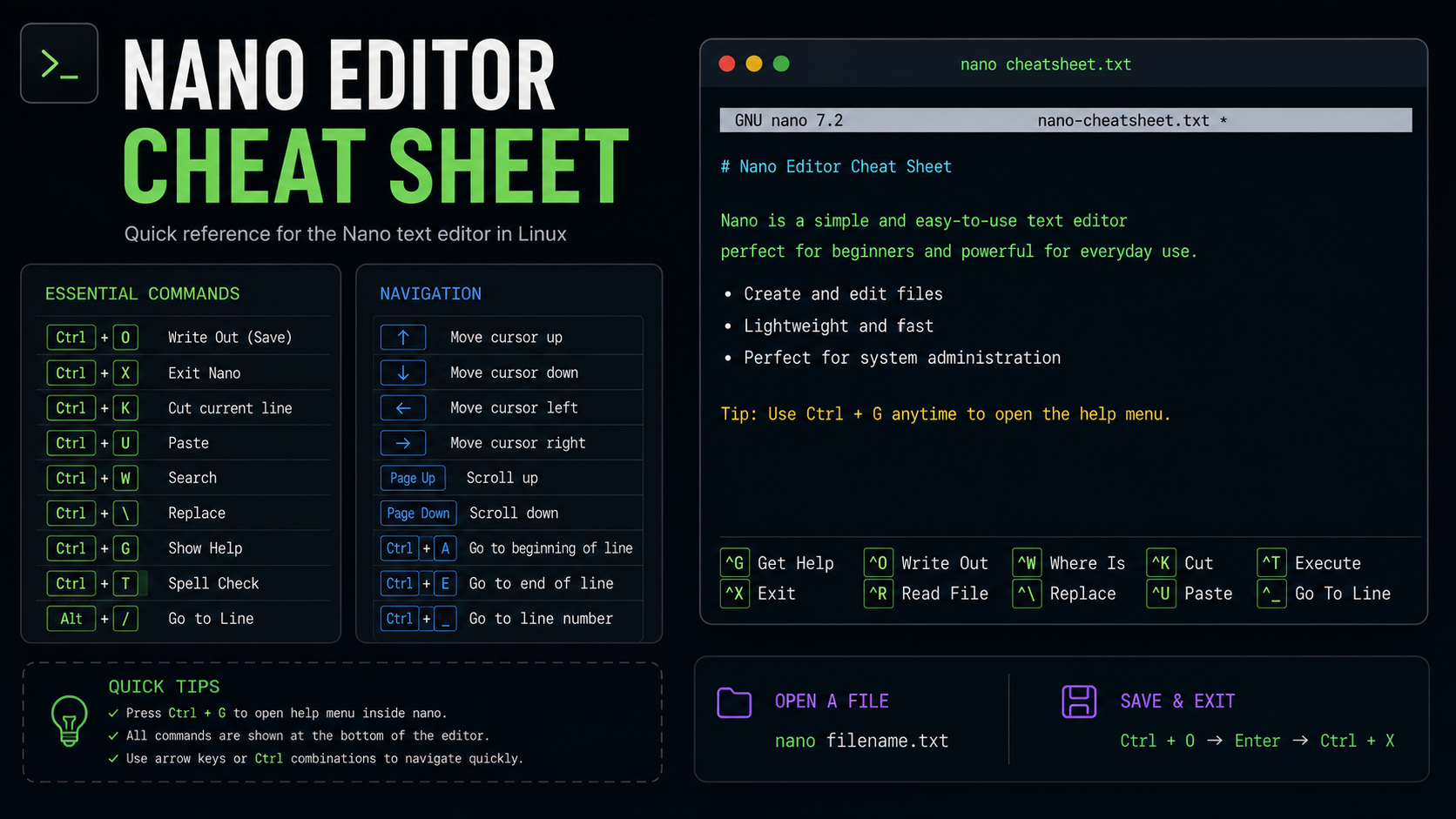
📝 GNU Nano Developer Shortcut Guide
Nano is a lightweight terminal text editor widely used by developers for quick edits.
This guide covers essential shortcuts for navigation, editing, file handling, and productivity.
🔑 Navigation Shortcuts
- Start of line →
Ctrl+A - End of line →
Ctrl+E - Next word →
Ctrl+Space - Previous word →
Alt+Space - Forward one character →
Ctrl+F - Backward one character →
Ctrl+B - Go to specific line number →
Ctrl+/ - Next page →
Ctrl+V - Previous page →
Ctrl+Y
Usage:
Use these shortcuts to move quickly through code or configuration files without relying on arrow keys.
✂️ Editing & Deletion
- Delete character before cursor →
Ctrl+H - Delete character under cursor →
Ctrl+D - Delete word left →
Alt+Backspace - Delete word right →
Ctrl+Del - Delete current line →
Alt+Del - Cut current line →
Ctrl+K - Copy current line →
Alt+6 - Paste cutbuffer →
Ctrl+U
Usage:
These are vital for developers editing code snippets, removing unnecessary lines, or restructuring text quickly.
📂 File Handling
- Save current file →
Ctrl+S - Write file (Save As) →
Ctrl+O - Insert another file →
Ctrl+R - Exit Nano →
Ctrl+X
Usage:
When working on multiple files, Ctrl+R lets you insert content from another file directly into the current buffer.
🔍 Search & Replace
- Forward search →
Ctrl+F - Backward search →
Ctrl+B - Replace text →
Alt+R - Find next occurrence forward →
Alt+F - Find next occurrence backward →
Alt+B
Usage:
Perfect for finding function names, variables, or replacing repeated code patterns.
🛠 Developer-Friendly Operations
- Undo last action →
Alt+U - Redo last undone action →
Alt+E - Comment/uncomment line/region →
Alt+3 - Spell check →
Ctrl+T Ctrl+S - Syntax check →
Ctrl+T Ctrl+Y - Formatter →
Ctrl+T Ctrl+O - Indent marked region →
Tab - Unindent marked region →
Shift+Tab
Usage:
These shortcuts help maintain clean code formatting and allow quick commenting/uncommenting during debugging.
📊 Quick Reference Table
| Action | Shortcut |
|---|---|
| Start of line | Ctrl+A |
| End of line | Ctrl+E |
| Go to line number | Ctrl+/ |
| Delete word left | Alt+Backspace |
| Delete word right | Ctrl+Del |
| Delete line | Alt+Del |
| Cut line | Ctrl+K |
| Paste | Ctrl+U |
| Undo | Alt+U |
| Redo | Alt+E |
✅ Tips for Developer
- Use marking (
Ctrl+^) to select text before cutting/copying. - Combine search + replace to refactor variable names quickly.
- Keep multiple buffers open with
Ctrl+RandCtrl+Xto switch between files. - Enable syntax highlighting by editing your
nanorcfile for better readability.
🚀 Conclusion
Mastering these shortcuts makes Nano a powerful tool for developers working directly in the terminal.
It’s especially useful for quick edits to scripts, configs, or code without needing a full IDE.